Inside the 3D Dashboard: A Spatial Way to Work With Your Prompt Library
By Emmanuel Abou Chabke, Founder and Editor · Reviewed by the AIQuickPrompt editorial team · About the publisher
Lists are fine until your prompt library grows past a hundred cards. Then scrolling becomes the bottleneck, and the mental map of where everything lives quietly disappears. The 3D Dashboard is our answer to that. It takes the same prompts you already have and lays them out in space, so you can see your whole library at once, move through it with your mouse, and pull any card forward the moment you spot it. This guide explains what it does, how each mode works, and when it genuinely beats the classic list view.

What the 3D Dashboard actually is
The 3D Dashboard is a spatial view of your prompt vault, rendered live in the browser. Every card you have saved appears as a real object you can approach, hover, read and interact with. Nothing is duplicated and nothing is exported | it is the same data as your normal workspace, just presented in a way your visual memory can hold on to.
It is available on Pro Monthly and Pro Yearly. Free accounts can see the preview and unlock it any time from the upgrade dialog.
- Live view of your real prompts, not a demo or a mockup.
- Titles stay readable at every zoom level, so you always know what you are looking at.
- Hold the mouse and drag left or right to move through the space.
- Hover a card to zoom it forward, click to open the full prompt.
Free mode: your whole library as a cloud
Free mode arranges every prompt into a floating cloud you can sweep through. It is the fastest way to get a feel for how large your library really is and to rediscover prompts you forgot you wrote. Because position is stable, you start to remember where things sit | the client brief lives to the left, the code prompts sit high and right | and that spatial memory is far quicker than reading a list top to bottom.
Search filters the cloud in place, so matching cards stay lit while the rest fade back. Favourites can be highlighted the same way, which turns the cloud into a working shortlist in a second.
Pipeline mode: folders as a grid you can walk
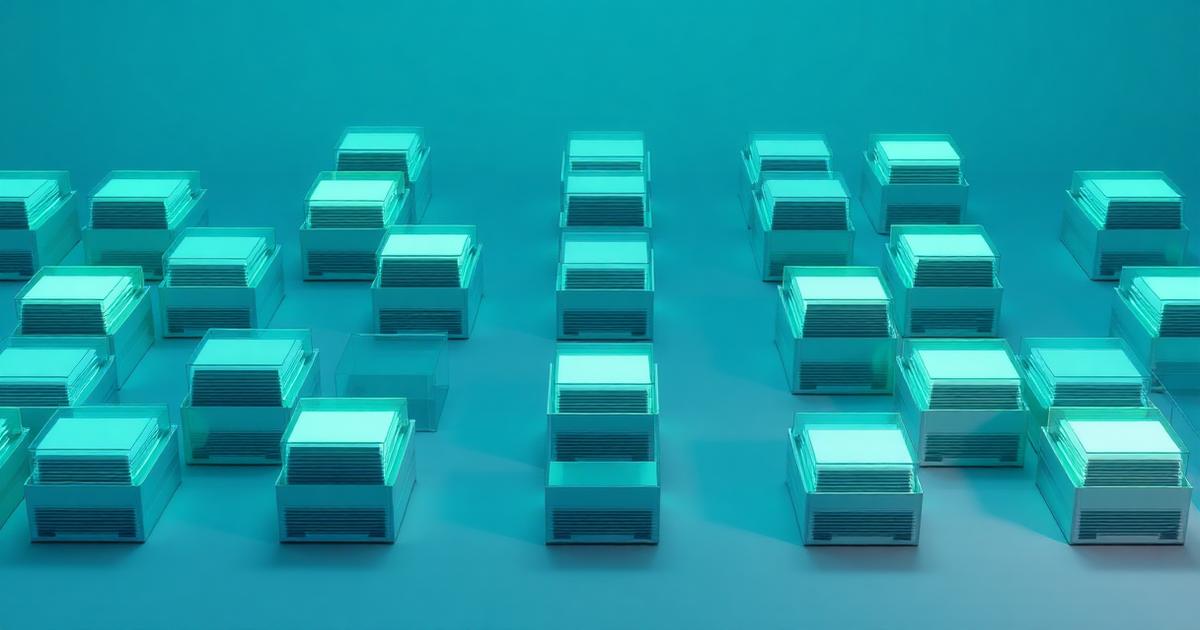
Pipeline mode reorganises the same cards into a structured grid grouped by folder. This is the mode to use when you are working, not browsing. Each folder becomes its own column of prompts, so a multi-step workflow | research, draft, review, publish | reads left to right exactly the way you run it.
Switching between modes triggers a one-click assembly animation, so you can see how your prompts regroup rather than losing your place. Grid, stack and ring layouts let you pick the shape that suits the size of your library.
- Group by folder to see a workflow end to end.
- Grid, stack or ring layouts depending on how many prompts you hold.
- Copy any prompt straight from the card without opening it.
- Favourite, search and open the full editor without leaving the view.
When 3D beats the list
The list view is still the right tool for precise editing, bulk selection and drag-to-folder housekeeping. The 3D Dashboard wins in three specific situations, and it is worth knowing which is which so you do not fight the interface.
- Rediscovery | you know you wrote something similar but cannot remember the title.
- Auditing | you want to see how lopsided your folders have become at a glance.
- Workflow review | you are checking that a multi-step prompt chain still makes sense in order.
- Showing your work | walking a client or teammate through your prompt system.
How to get the most out of it
Spatial views reward a tidy library. A few minutes of folder hygiene turns Pipeline mode from a pretty grid into a genuine operating picture of how you work. Favourites are the other lever | mark the ten prompts you actually reuse and they become instantly findable in either mode.
Pair it with AI Optimise and Save Version. Spot a weak prompt in the cloud, open it, optimise it on the model that suits the job, snapshot the result, and the improved version is what you see next time you fly through.
- Keep folders meaningful | one folder per project or per workflow stage.
- Favourite your top ten so the cloud always has anchors.
- Use search before you drag | it is faster for anything you can name.
- Optimise and Save Version from inside the card you just found.
Your prompts are an asset, and assets are easier to manage when you can see all of them at once. The 3D Dashboard is not a gimmick layer on top of a list | it is a second way of thinking about the same library, tuned for the moments when scrolling stops working. Open it on Pro, sweep through your vault, and see what you had forgotten you already wrote.