How to Use Reusable Variables in AIQuickPrompt
By Emmanuel Abou Chabke, Founder and Editor · Reviewed by the AIQuickPrompt editorial team · About the publisher
Most people keep five slightly different copies of the same prompt, one per client, per audience, per tone. Reusable variables remove that duplication. You write a placeholder once, and every time you use the prompt AIQuickPrompt asks you for the value and hands you the finished text. This guide explains exactly how the feature works today, plus a set of examples you can copy straight into your vault.

Step 1: Write a placeholder in your prompt
A variable is just double curly braces around a key. Type {{client_name}}, {{audience}} or {{tone}} anywhere in the prompt body and AIQuickPrompt detects it instantly. Keys can use letters, numbers, underscores, dashes and dots, up to 60 characters, and spacing inside the braces is ignored.
Use the same placeholder as many times as you like. A key that appears five times is still one question | you fill the value once and every occurrence is replaced.
- Valid: {{client_name}}, {{target-audience}}, {{brand.tone}}, {{word_count}}.
- Repeats are deduplicated, so the form never asks twice for the same key.
- Prompts with no placeholders are untouched and keep one tap Copy.
Step 2: Copy becomes Use Prompt
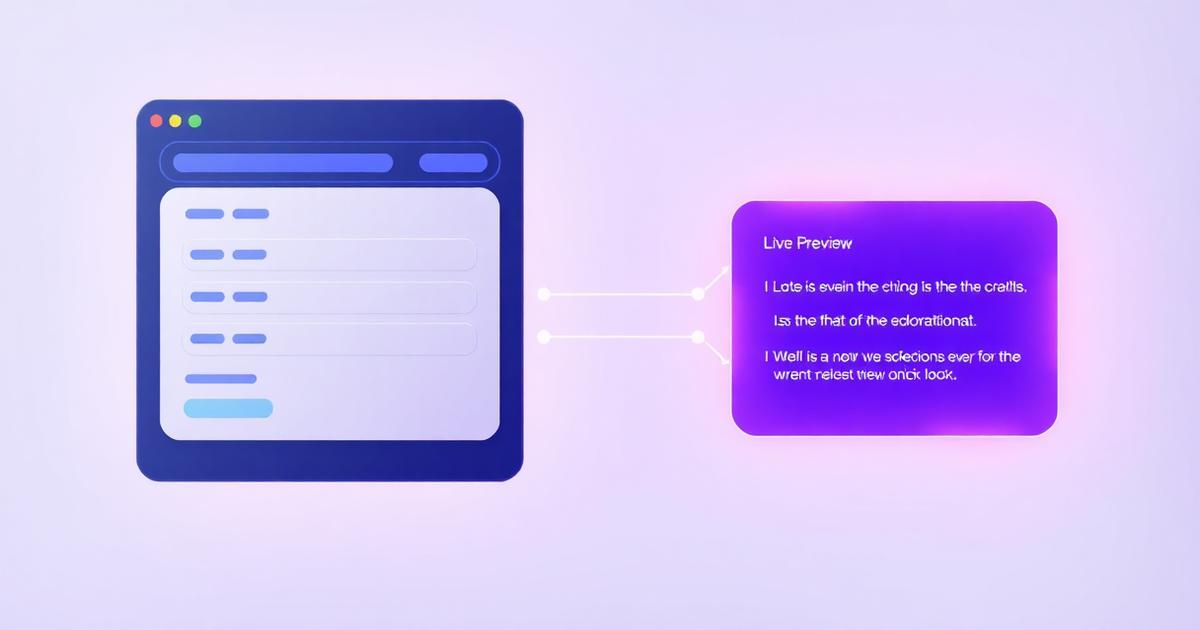
The moment a prompt contains at least one variable, the Copy action on the card and in the editor turns into Use Prompt. Clicking it opens a modal on desktop and a bottom sheet on mobile, with one field per variable on the left and a live preview of the finished prompt on the right.
Required fields are marked with a red asterisk, and the copy button refuses to run until they are filled, telling you how many are missing. When everything is valid, Copy prompt writes the rendered text to your clipboard and the panel closes. Your saved prompt is never modified | the values apply to that one copy only.
- Live preview updates as you type, so you see the exact text you will paste.
- Unfilled optional placeholders stay as {{key}} in the output rather than becoming blanks.
- Works the same on shared links: viewers can fill variables but cannot edit the prompt itself.
Step 3: Configure each variable in the editor
Open any prompt and you will find the Configure variables panel under the body, with a badge showing how many variables were detected. Expand it to shape the form your future self will see.
Every setting is stored on the prompt, so it travels with sharing, versions and backups. If you never configure anything, sensible defaults apply: the label is a humanised version of the key and the field is a short text input.
- Display label: show "Client name" instead of client_name.
- Field type: short text, long text, number or dropdown.
- Required or optional, so only the essentials block the copy.
- Default value, pre-filled every time the panel opens.
- Dropdown choices, for fixed options like tone or channel.
- Display order, using the up and down arrows on each variable.
Example 1: Client-ready marketing copy
This is the classic case for agencies and freelancers. One prompt, every client, zero duplicates.
Write ads for {{client_name}} in the {{industry}} industry. Speak to {{audience}} in a {{tone}} tone. Produce {{variant_count}} variants of no more than {{word_count}} words each.
Configure {{tone}} as a dropdown with Professional, Playful, Bold and Warm, {{variant_count}} and {{word_count}} as numbers with defaults of 3 and 30, and mark {{client_name}} as required. Using it becomes a ten second form instead of a search and replace job.
Example 2: Developer and vibe coding prompts
Code prompts repeat structure constantly. Variables let one prompt cover an entire stack.
Review this {{language}} code for {{concern}}. The project uses {{framework}}. Return findings ordered by severity and include a patch. Code: {{code_block}}
Set {{language}} and {{framework}} as dropdowns with the stacks you actually use, {{concern}} as a dropdown of Security, Performance, Readability and Accessibility, and {{code_block}} as long text so you get a proper textarea to paste into.
Example 3: Outreach, support and recruiting
Any message that changes only in the details is a variable prompt waiting to happen.
Cold email: Write a short outreach email to {{first_name}} at {{company}} about {{offer}}. Reference {{trigger_event}} and end with a {{call_to_action}}.
Support reply: Reply to a customer on {{channel}} who reported {{issue}} on plan {{plan}}. Tone: {{tone}}. Offer {{resolution}} and keep it under {{word_count}} words.
Recruiting: Write a job description for a {{role}} at {{company}}, {{seniority}} level, {{location}}, highlighting {{top_benefit}}.
- Dropdowns for channel, plan, seniority and tone stop typos reaching customers.
- Defaults for company and tone mean most sends need two fields, not six.
- Share the prompt with your team so everyone fills the same form and stays on brand.
Example 4: Study, research and content series
Repeatable learning and publishing workflows benefit the most, because the structure is fixed and only the subject moves.
Study: Explain {{topic}} to a {{level}} learner in {{language}}. Give {{example_count}} examples and finish with a short quiz.
Research: Summarise {{source_type}} about {{topic}} published after {{year}}. Output a table with claim, evidence and confidence.
Content: Draft a {{format}} about {{topic}} for {{audience}} in a {{tone}} tone, optimised for the keyword {{keyword}}.
Tips that make variables pay off
Variables are available on Free and Pro, and they combine with everything else in AIQuickPrompt: folders, favourites, locks, version history, AI Optimise and sharing all keep working exactly as before.
- Keep keys short and lowercase with underscores, so they read cleanly in the form.
- Only mark a field required if the prompt is genuinely broken without it.
- Give defaults to anything you use 80 percent of the time.
- Prefer dropdowns over free text whenever the answer is one of a known set.
- Save a version before a big rewrite, so you can roll back the template later.